
In short
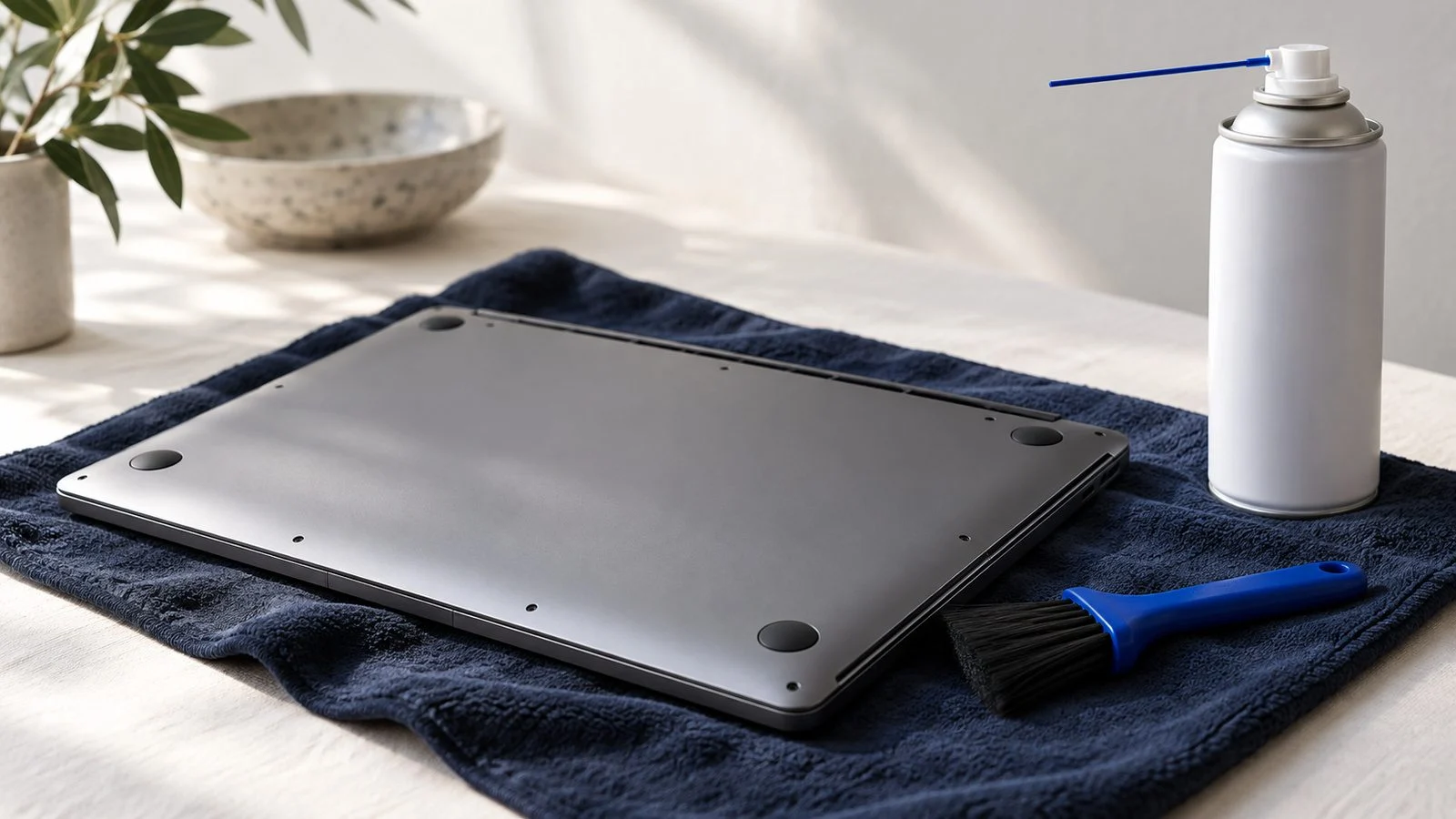
To clean a laptop fan, shut the laptop down, unplug it, then blow short bursts of compressed air into the vents, holding the can upright and keeping the fan from spinning too fast. Check temperatures before and after. Open the case only if that fails, and read your warranty terms first.
The usual mistake is not neglect. It is cleaning the fan in a hurry: laptop still on, can of compressed air held upside down, fan spinning like a jet engine, and a confident blast straight into the keyboard. The dust moves somewhere. Whether it leaves the laptop is another matter.
This guide covers how to clean a laptop fan safely without opening anything, how to tell whether you need to open it, what that does to your warranty, and how to measure temperatures before and after so you know the job was worth doing. The last part is the one people skip, and it is the only part that tells you anything.
Signs your laptop fan needs cleaning
Laptop fans pull air in through small vents, push it across a heatsink and blow it out of an exhaust vent. Dust collects on the fan blades and, more stubbornly, as a felt-like mat on the heatsink fins right at the exhaust. As that mat thickens, less air gets through, the fan spins faster to compensate, and the processor gets hotter.
- The fan is louder than it used to be, or runs at full speed doing very little.
- The underside or keyboard gets uncomfortably hot during ordinary work.
- Performance drops under sustained load, such as a long video call or an export, then recovers when the laptop cools.
- The air from the exhaust vent feels weak even when the fan is loud.
- You can see grey fluff through the vent grilles.
None of these alone proves dust is the cause. A laptop also runs hot because of a stuck background process, a blocked vent from sitting on a duvet, or simply a heavy workload. That is why you measure first.
Before you clean: record temperatures
You want a before and after comparison under the same conditions. Otherwise you are relying on how the laptop feels, which is not evidence.
How to check temperatures
- Windows: a free hardware monitor such as HWiNFO shows processor temperature, fan speed and whether the processor is throttling. Task Manager’s Performance tab also shows GPU temperature for many dedicated graphics cards.
- Linux: the lm-sensors package provides a
sensorscommand that lists temperatures and fan speeds. - Mac: Activity Monitor does not show temperatures, so you would need a third-party monitoring utility from a developer you trust.
The test
Close everything, let the laptop sit idle for ten minutes, and note the processor temperature and fan speed. Then run something that keeps the processor busy for ten minutes (a long video export, a benchmark, or a demanding game) and note the maximum temperature, whether the monitor reports thermal throttling, and the fan speed. Keep the room, the surface and the power settings the same for the second run.
Your processor maker publishes a maximum operating temperature for your chip. If you are regularly near it under ordinary loads, or the monitor shows throttling during everyday work, cooling is a real problem rather than a cosmetic one.
How to clean a laptop fan without opening it
This is the method to try first. It is low risk, it needs only a can of compressed air, and on many laptops it is enough.
Step 1: Power down completely
Shut the laptop down, not sleep or hibernate, and unplug the charger. If the battery is removable, remove it. You do not want the fan spinning under power while you work, and you do not want anything live while there is a metal nozzle near the vents.
Step 2: Find the vents
Turn the laptop over and look for the intake grilles, usually on the underside, and the exhaust vent, usually on the side or back edge. On some models the exhaust sits behind the hinge. Knowing which is which matters, because you want to push dust out of the laptop, not further into it.
Step 3: Stop the fan from overspinning
Compressed air can spin a laptop fan much faster than it was designed to turn. That can strain the bearing, and a fan spun hard acts like a small generator. Use short bursts rather than a long blast. If you can reach a blade through the intake grille, hold it still very gently with a wooden toothpick or a plastic tool, never anything metal and never pushing hard.
Step 4: Blow out the dust
Hold the can upright. Tilted or upside-down cans can spray propellant as a cold liquid, which you do not want on electronics. Keep the nozzle an inch or so from the grille. Blow short bursts into the exhaust vent first, which pushes the mat off the heatsink fins and back out through the intake, then work across the intake grilles. Do this somewhere you do not mind a small grey cloud.
Step 5: Let it settle, then test
Give the laptop a few minutes for any condensation from the can to clear, then power it on and repeat the temperature test exactly as before. Same room, same surface, same workload.
What not to use
- A household vacuum cleaner: it can build up static and spin the fan hard. If you use suction at all, use a small electronics vacuum or just the air.
- Cotton buds pushed through the grilles: fibers snag on the blades and fins.
- Liquids of any kind inside the vents.
- Air compressors from the garage: too much pressure, and the air can carry oil and moisture.
When to open the laptop
If the temperatures barely change after a thorough clean from outside, the dust mat is probably packed against the heatsink fins where air from outside cannot shift it. The cure is to open the case, lift the mat off the fins, and clean the fan blades directly. Other reasons to open it include a fan that rattles, grinds or clicks, which suggests a worn bearing and a replacement fan rather than cleaning.
Opening a laptop is not difficult on many models, and much harder on some. The usual approach is to remove the screws on the bottom panel, release the clips with a plastic pry tool, disconnect the battery before touching anything else, and then clean the fan and fins with a soft brush and short bursts of air. Look for a service or repair manual for your exact model before you start; many manufacturers publish them, and they show where the hidden screws and fragile ribbon cables are. Replacing the thermal paste between the processor and heatsink is a separate, more delicate job, and not one to add on a whim.
If any of that sounds unpleasant, a repair shop can do it in an afternoon. There is no prize for doing it yourself.
The warranty question
Read your warranty terms before opening anything. Some manufacturers explicitly list the bottom panel, memory or storage as user-serviceable, and some do not. Damage you cause while the case is open is unlikely to be covered by any warranty.
In the United States, the Magnuson-Moss Warranty Act limits what manufacturers can do here. In 2018 the Federal Trade Commission warned several companies that “warranty void if removed” stickers and similar terms are generally not allowed under that law, because a warranty generally cannot be conditioned on using only the manufacturer’s own service. That does not oblige a manufacturer to cover damage you caused. Rules differ outside the United States, so check what applies where you live. If the laptop is still under warranty and the fan is clearly faulty, letting the manufacturer handle it is usually the easier path anyway.
How often to clean it
There is no universal schedule; it depends on your home. Pets, carpets, smokers and using the laptop on soft surfaces all speed up dust buildup. A reasonable habit is to record your temperatures once when the laptop is new or freshly cleaned, then repeat the same test every few months. When the numbers drift up, clean it. That is better than a calendar reminder, because it is based on your laptop rather than on someone else’s.
If your laptop feels sluggish online as well as hot, the cause may be elsewhere; our guide on how to improve WiFi signal shows how to separate network problems from device problems, and how to use a VPN covers why a VPN can add some load and latency. More household maintenance guides are collected in Consumer Tech.
What I would do
I would run the idle and load temperature test first and write the numbers down, because without them you are guessing. Then I would do the compressed air clean from outside, with the laptop off, short bursts, can upright, exhaust first. If the load temperature did not come down noticeably, I would check the warranty, find the service manual for the model, and either open it carefully or pay a repair shop, depending on how many tiny screws I felt like dealing with that day. I would not touch the thermal paste unless the temperatures stayed high after the fins were properly clean.
Common questions
Can I clean a laptop fan without opening the laptop?
Yes. With the laptop off and unplugged, short bursts of compressed air into the exhaust and intake vents clear a lot of dust. It may not shift a dense mat packed against the heatsink fins, which is when opening the case becomes worthwhile.
Is compressed air bad for a laptop fan?
Not if you use it carefully. Short bursts, a can held upright and a fan that is not allowed to spin wildly are the main precautions. Long blasts can overspin the fan, and a tilted can can spray cold liquid propellant.
How do I know if my laptop fan is dirty?
Typical signs are a louder fan, more heat than usual during ordinary tasks, weak airflow from the exhaust and slowdowns under sustained load. Recording temperatures with a hardware monitor before and after cleaning confirms whether dust was the problem.
Will opening my laptop void the warranty?
It depends on your manufacturer’s terms and where you live. In the United States, the FTC has said that “warranty void if removed” stickers are generally not allowed, but damage you cause while working inside is a different matter. Check the warranty terms before you start.
How often should I clean my laptop fan?
It depends on dust levels at home, pets and where you use the laptop. Rather than a fixed schedule, repeat the same temperature test every few months and clean the fan when the readings start to climb.
Newsletter waiting list
Get notified when our newsletter launches
We are not sending a newsletter yet. Leave your email and we will write once, when the first issue is ready.